
After printing paging slips and pulling the requested items, they must now be checked out it both the local ILS and the DCB. All other pulled items can be checked out to be sent.
Step 1: Check Out In the Local ILS
Items must be checked out in the local ILS first, allowing staff to catch any items that are on hold for local patrons. Items that come up with holds must have those holds activated, and the requests canceled in the DCB.
Step 2: Check Out in the DCB
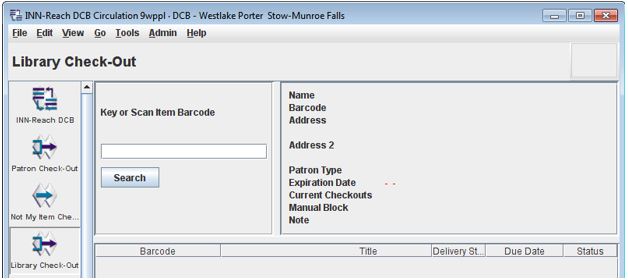
- Open the Inn-Reach DCB. Click on the “Library Check-Out” button in the left-hand menu.

2. Click in the empty search box and begin scanning items. Note: Items with barcodes that end in a special character like $, %, or + must have a “b” placed in front of their barcodes before scanning, or the items will not check out correctly.
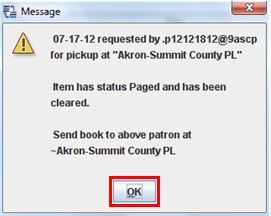
 A successful scan will open a pop-up window. Click the “OK” button to process the item,
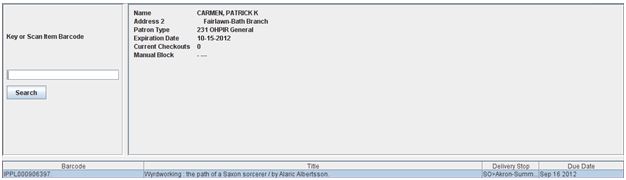
3. A new window will appear with item information. Repeat these steps for all items.
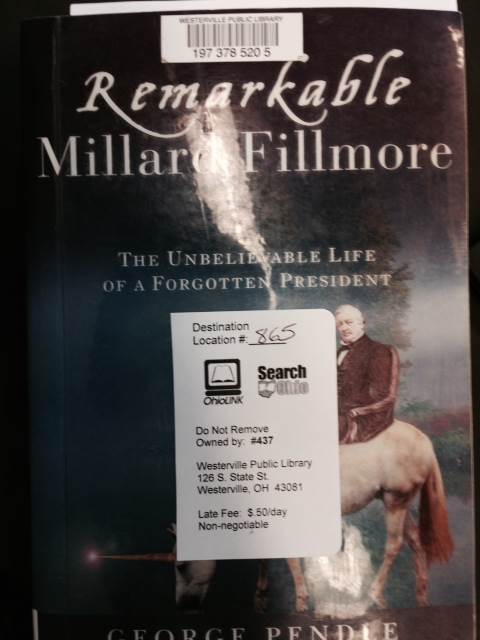
4. Affix a SO/OL sticker to the face of the item, making sure not to cover the barcode. Write the 3-digit code of the borrowing library on the label.
5. Shelve and/or pack the item for shipping.