
Rapido fulfillment reports require the user to have an analytics role. All other reports, such as the monthly reports can be done using the Resource Sharing Requests Borrowing/Lending functions and facets.
Rapido Reports (Polaris & Leap)
Index
- How to see your role
- How to export results to Excel
- Rapido Fulfillments
- Returned Too Long
- Requested Too Long
- In Transit Too Long
- Received Too Long
- Institutional Overdues
Reports on Rapido: The role of Design Analytics is needed to be able to create and build reports. Once a report has been created, it can be saved under favorites and/or the Dashboard and should be accessible to all users.
How to see your role.
- Click on the silhouette at the top-right of the screen and choose User Details.
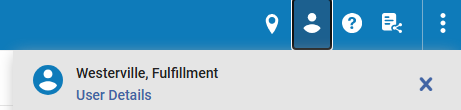
2. Scroll down the screen to see your assigned roles.

3. If you do not have permissions for designs analytics, contact your Rapido Admin. Note: analytics may already be enabled, reports-wise, on the homescreen of your Rapido login.
How to Export Rapido Reports
- First run the report (see the report instructions below).
- Export the list by selecting the check all box at the top of the list.
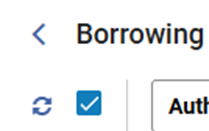
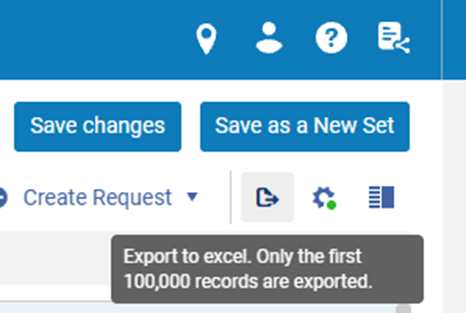
3. Select the Export button at the top-right of the screen. The list will go to the downloads folder as an Excel sheet.
Fulfillment Reports: Borrowing/Lending
1.Select the Analytics button on Rapido.

2. Select Access Analytics under Create Analysis.

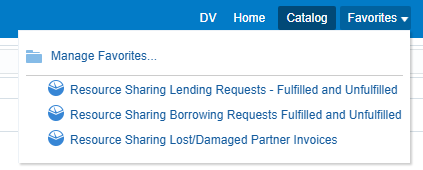
3. Select Catalog on the top-right of the screen.

4. Select Shared Folder > Rapido > Reports to view and access pre-done reports that apply specifically to your library and/or consortia.
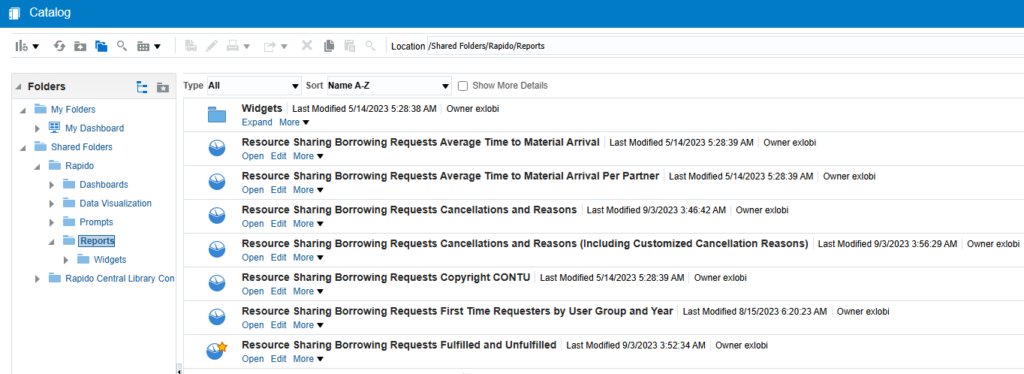
5. Select the report that you want by clicking Open under the title. Ex: Borrowing Requests Fulfilled and Unfulfilled. Select the More button to add the report to your Favorites, found at the top-right of the screen.
6. A report will open with detailed information concerning that topic.

7. Select Edit at the bottom-left of the report.
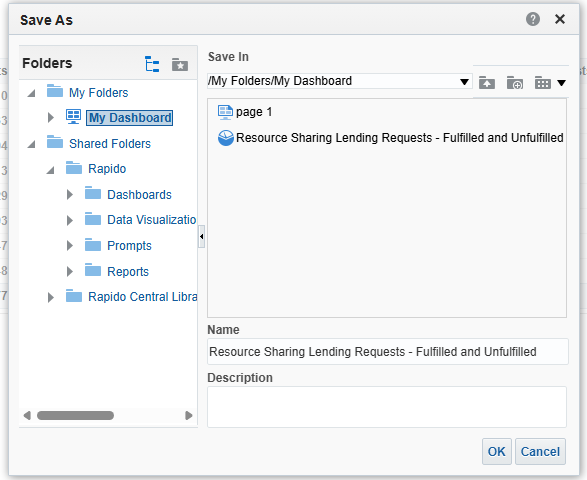
8. Select the Save-As button at the top-right of the screen and save in My Dashboard.
Monthly Reports Using Rapido
Returned Too Long Report
Description of report: This report creates a list of items requested by other libraries that have had the status Returned for more than the specified number of days. These are items that have not been checked in at the owning library
Frequency: Once a month
Report Type: Returned too Long
Minimum Days: Recommended 7 days
Email the PDF to the applicable PCircs at the owning libraries. That PCirc should check the record to see if stills says it is out to the borrower and they should check the shelves to see if it was returned, but not checked in.
Email Language ex: (feel free to copy)
Hello,
This is the Returned Too Long list generated for Westerville. Please check your shelves or catalog to see if the item has been returned. If you find it, please check it in. If the item has a return date of more than 60 days, please check the item in so that it comes off borrowing patron’s account and make it missing.
If your records indicate that it’s available or already checked out to another patron, please let me know so that I can delete the broken link. As these items are listed as Ret’d on our end, I will be manually deleting these virtual records at the end of the month
Rapido Report Instructions
- In Rapido, Resource Sharing Requests, choose Borrowing and All active borrowing requests.

2. Open the facets screen.

3. Choose your library and/or branch as the owning library and the status Active and Returned item to partner. Set the creation date to 8-3 0 days ago and/or older.
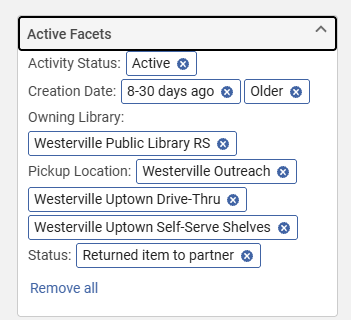
4. The resulting list will show items that were returned by your patrons, but have not yet been checked in at the owning location.
5. Export the list and copy and paste the relevant information to the appropriate PCirc contact at the owning library. (Title, Barcode, item type, etc.)
Paged Too Long
Description of Report: Allows the Library to create a list of all items that have been requested and paged, but have not changed status.
Frequency: At least once a month.
Report Type: Paged too Long
Minimum Days: Recommended 3 days
Rapido Instructions
- In Rapido, Resource Sharing Requests, choose Lending and All active Lending requests.
2. Open the facets screen.
3. Choose your library and/or branch as the owning library and the status Active and Created lending request. Set the Rapido indicator to Yes. Set the creation date to 8-3 0 days ago and/or older.
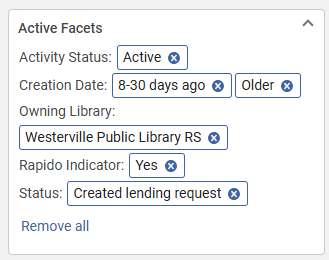
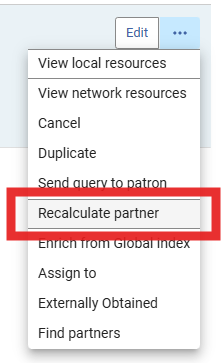
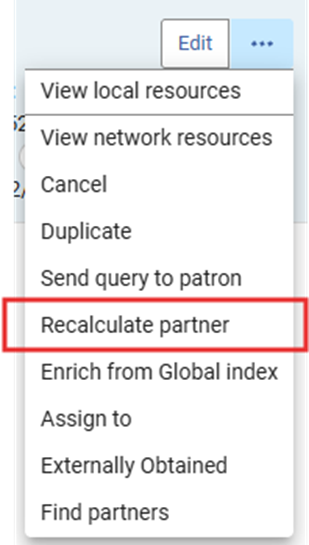
4. Export the list and use it to search for the items. If found, fulfill the hold and send on to the borrowing library. If it is not found, cancel the hold in Rapido by selecting the three dots beside the Edit attached to the record. Choose Recalculate partner to send the request to another library.
Requested Too Long
Description of Report: Allows the library to create a list of all items that have been requested by their patrons and have been unfilled for more than the days specified in the report.
Frequency: Once a month or bi-monthly
Minimum Days: 7, keep in mind weekends and holidays. Using 7 days as the minimum will help eliminate any SearchOhio requests which automatically move onto the next available location after 6 days.
For OhioLINK requests that don’t appear to be getting filled by the original requesting location, consider going in and placing a second request for the patron. This new request will then attempt to use another OhioLINK item to fill the request. Otherwise, the OhioLINK request will never automatically move onto another available copy.
Rapido Instructions
- In Rapido, Resource Sharing Requests, choose Borrowing and All active borrowing requests.
2. Open the Facet screen.
3. Choose your library and/or branch as the owning library and the status Active and Request sent to partner. Set the creation date to 8-3 0 days ago and/or older.
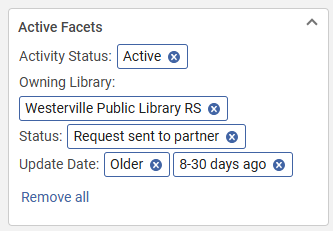
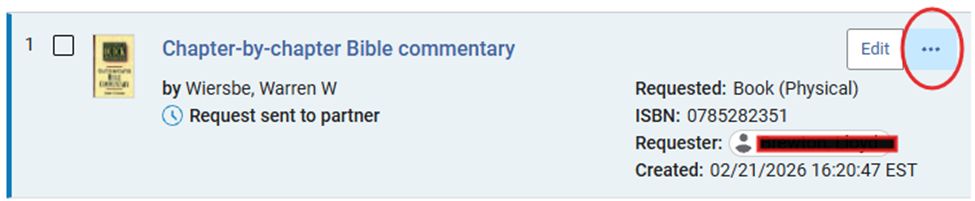
4. Resend the request by selecting the three dots beside the Edit button.
5. Choose Recalculate partner and it will send the request to another member.
6. The hold has now been re-requested for the patron.
In Transit Too Long
Description of report: This report shows items that have been shipped to Your Patron for more than the specified number of days. It locates books that have been put on the Hold shelf without being checked in and lets you know which items need to be reported as missing to the owning library.
Frequency: Once a week -late in the week to avoid weekend transit delays.
Report Type: In Transit too Long
Minimum Days: Recommended 14 days
Locate the items in the results list that are in Transit to your library. Check the Hold/Reserve Shelf to see if the items are there. If the material is found on the hold shelf, check it in and then return the item to the hold shelf. The patron will then get the notice that the item is ready for pickup.
Email Language ex: (feel free to copy)
Hello,
This is the In Transit Report for Westerville. These items have not been received at our location. Please check your shelves for the item. If you do not find the item you may want to mark it as ‘missing’ in the catalog until it can be located.
I will be removing the record (checking it in and deleting the item record) from our patron’s account at the end of the month.
Rapido Instructions
- In Rapido, Resource Sharing Requests, choose Lending and All active Lending requests.
2. Open the Facet screen.
3. Choose your library as the owning library and the status, Shipped Physically and the creation date 8-30 days ago and older.
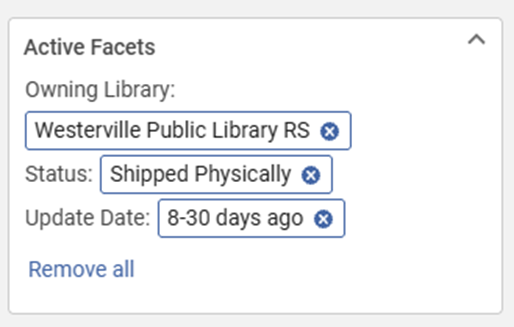
4. The list will show all items that have not yet arrived at your library.
5. Export the list. Copy and paste the relevant information to the appropriate PCirc contact at the owning library. (Title, Barcode, item type, etc.)
Received Too Long
Description of Report: This report lists the items with the status Received for more than 10 days. It helps to locate items that seem to be missing from the hold shelf.
Frequency: Monthly or bi-monthly
Check to see that all of the items on this list are on your hold shelf. If an item is not found, send the owning library’s PCirc an email with the item information attached. They will then search their shelves to see if the item had been returned, but missed. If they can’t find it, they will make the item missing.
Email Language ex: (feel free to copy)
Hello,
This is the Received Too Long report for (your library). These items are no longer on our hold shelves, but are still listed as Received/Held. Please check your shelves for the item. If you do not find the item you may want to mark it as ‘missing’ in the catalog until it can be located.
I am removing the record (checking it in and deleting the item record) from our patron’s account at the end of the month.
Rapido Instructions
- In Rapido Resource Sharing Requests choose Borrowing and All active borrowing requests.

2. Open the Facets page.
3. Choose your library as the owning library and pickup locations that apply to your library/branch. Choose the status as Active and Physically received by library. Set the creation date to date 8-30 days ago and older.
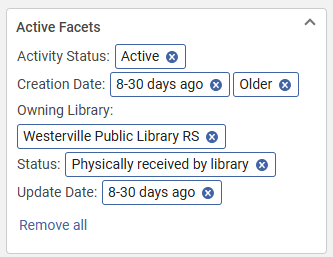
4. This list will show the items that have been received. You may choose to also choose the create date 8-30, to see items that may be there past the 10 day pickup date, but below the 31+ date of the older designation.
5. Export the list and use it to check the status in your own ILS. If it is still listed as on the hold/reserve shelf, search the shelves for the item. These should be past their pickup date. If found, process them for return to the owning library. If not found, contact the pcirc so they can check their shelves and make the items missing if necessary.
Institutional Overdues
- In Rapido Resource Sharing Requests choose Lending and All active borrowing requests.
2. Open the Facets screen.

3. Choose your library and/or branch as the owning library and the status Active and Received by Partner. Set the due date to older.
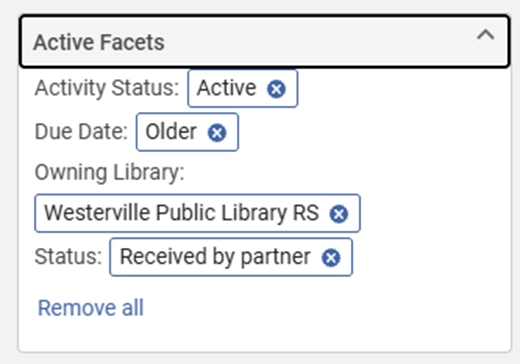
4. The resulting list will show all items that were due more than 30 days ago that have not yet been returned. Note: you can put the list in order to find items older than 30 days that fit within your Institutional Overdue parameters. Ex: Westerville goes by 90 days before contacting borrowing library pcircs.
5. Export the list. Copy and paste the relevant information to the appropriate PCirc contact at the borrowing library. (Title, Barcode, item type, etc.) Once the items have been manually billed to the patron by the borrowing library, follow your library’s procedure to remove the item from your catalog and collection.
Tags: SearchOhio, Rapido, DCB, Reports, Resource Sharing, OhioLINK, Borrowing Reports, Lending Reports, Facets