
Using the Request Manager
==== Important Note: Some libraries have the system set up to combine steps and steps 1-4 is all that they need for the item to be completely checked in with the patron being notified. Others will have to complete all steps. Please see your PCirc for clarification if needed. ====
- On Leap, go to Utilities > Request Manager

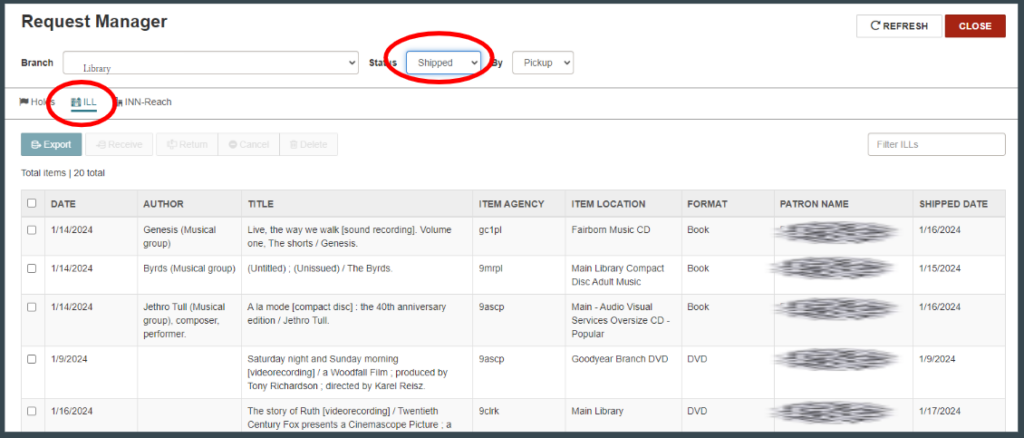
- Select the ILL tab, then change the status to Shipped.
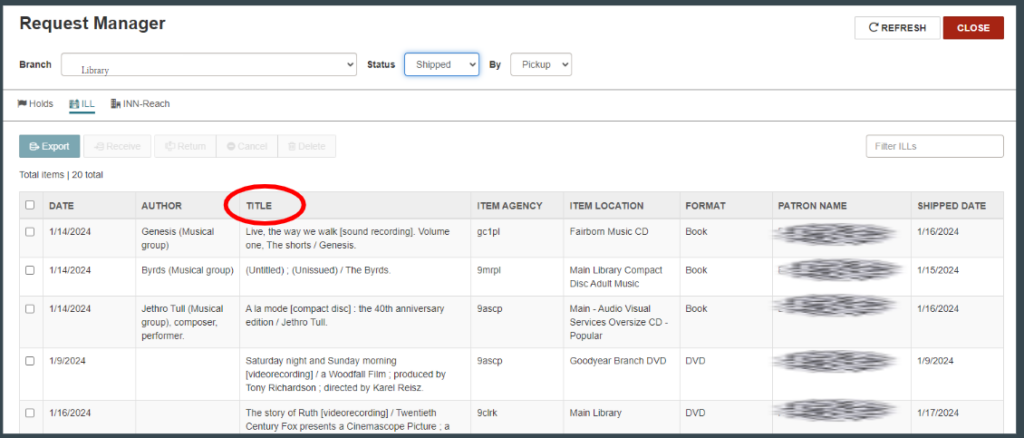
- Click the Title column to put items in alphabetical order to easily locate the incoming item.
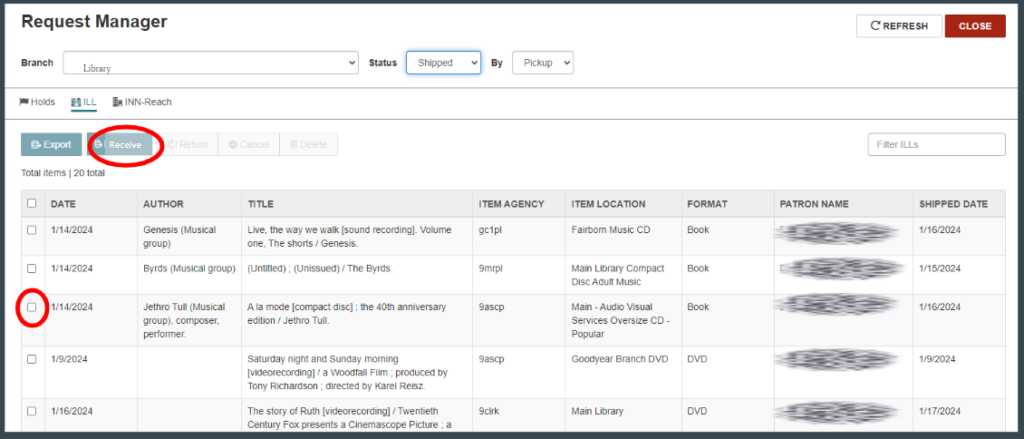
- Select the item(s) and choose Receive to process the incoming item.
- The Hold Slip will print to be placed in the item.
Using the Patron Record
This method can be useful when the barcode can’t be read.
- Access the patron’s account and select the ILL / Held tab.
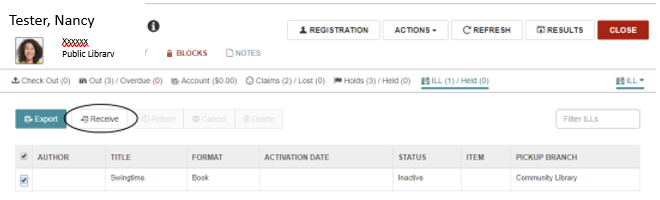
- Select the item and click the Receive button.
- Check in the item to produce a Hold Slip.
Using the Find Tool
- Use the Find Tool > ILL Request > ILL Request
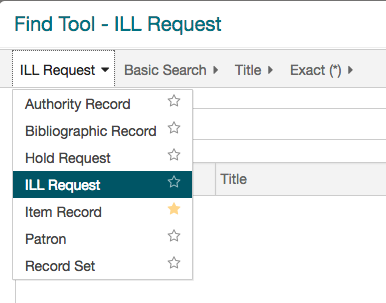
- Look up the item by title and match it with the patron name.
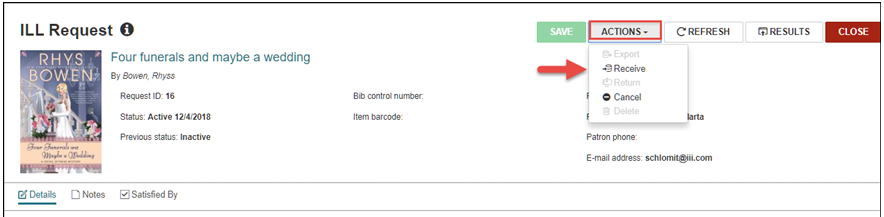
- Open the item record and select Actions > Receive.
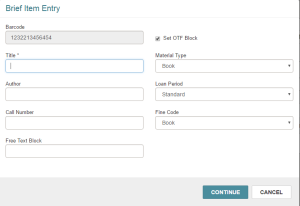
- You may be prompted to create a Brief Item Entry. Enter in the relevant information. Use the barcode on the item, making sure to enter a ‘b’ in front of the barcode number.
- Check the item in and follow the prompts to print the hold slip.