This method should only be used when neither the patron nor the staff know the PIN, otherwise, staff should go through the catalog to place the hold for the patron.
Always try to place the hold first through the SearchOhio catalog. If the patron doesn’t know their card number, look them up in your ILS. In most library policies, you can still access their information and place the hold if they don’t have their ID. In that case, you place the hold, but don’t share their information.
If they don’t know their PIN, try the last 4 of their phone number. For many libraries, this is the default. If the patron knows their library card number but does not know the PIN, consider changing the PIN on their account, if permitted by your library.
Note: A staff ‘magic override’ is coming for the catalog in 2026 but a specific date is still TBD. Once this is available, Polaris, Koha, and Sierra will no longer need to use the Rapido interface for patron override.
Adding a Patron to Rapido for Patron Override
Step 1. Go to the Rapido Interface online and login for your institution. Each library/staff member will have their own login assigned before 10/27/25.
Step 2. Look up the patron in Rapido.
- If the staff have used the override function for the patron before, the patron will appear in the system. If they are there, continue to Placing a Hold.
- If this is the first time staff are using the override function, they will need to add the patron as a user. Continue to step 3.
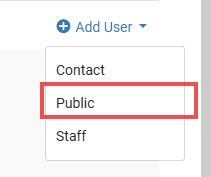
Step 3. Select + Add User and then Public.
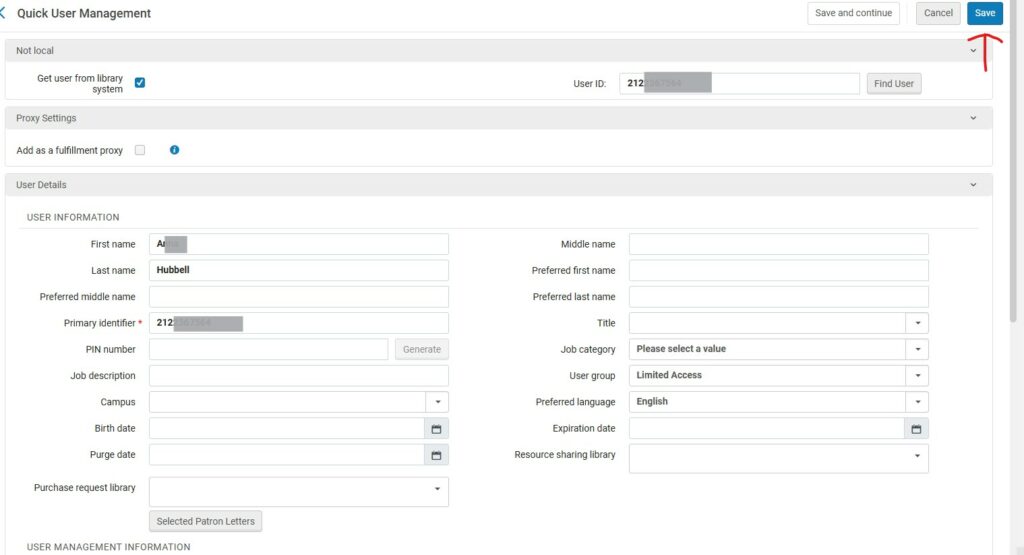
Step 4. The Quick User Management will pop up. First, select Get user from library system.

Step 5. Next, fill in the patron’s name or library card in the User ID field.
Their information will be retrieved from the ILS and autofill the fields.
Step 6. Select Save to finish adding them to the system.
Place a Hold for a Patron on Rapido
Step 1. Look up the item in Rapido using the Global Index filter on the search bar. You can search by author, keyword, title, ISBN, etc.
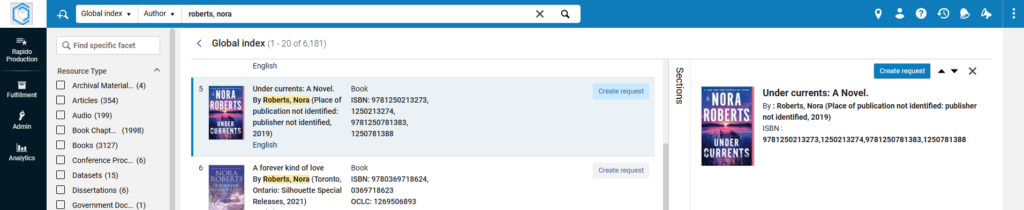
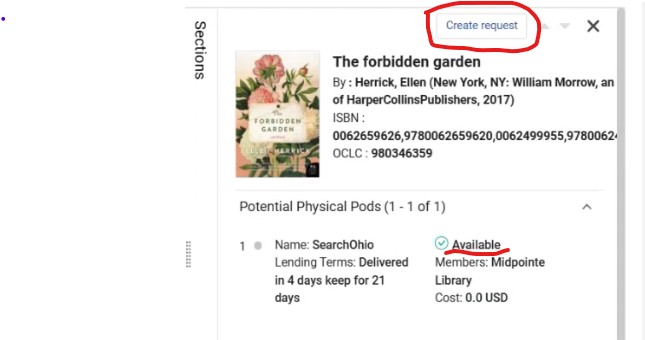
Step 2. If the item is Available, then select Create request to place the hold.
Step 3. Look up the patron under Requester, then choose the Pickup Location.
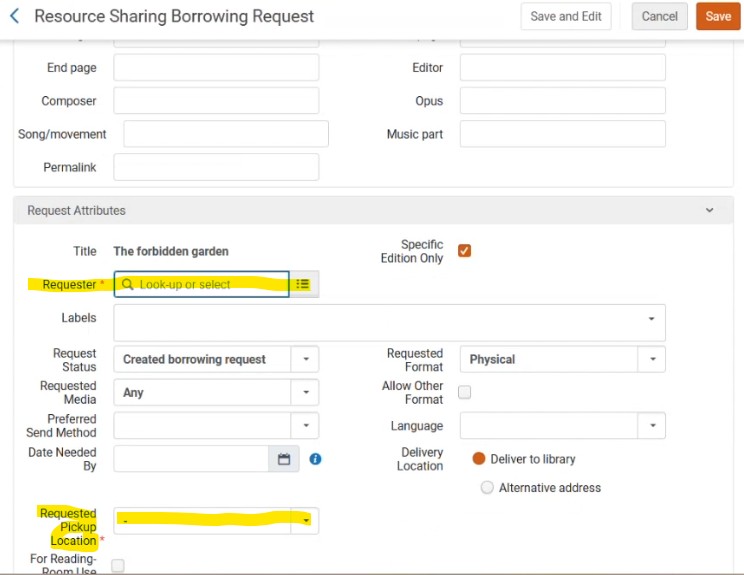
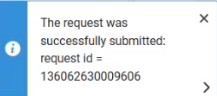
Step 4. Select Save to complete the request. A pop-up will appear with information. You do not need to note this. It will go away on its own.
Confirming the Hold
Step 1. Select the Resource Sharing Requests icon at the top of the screen.

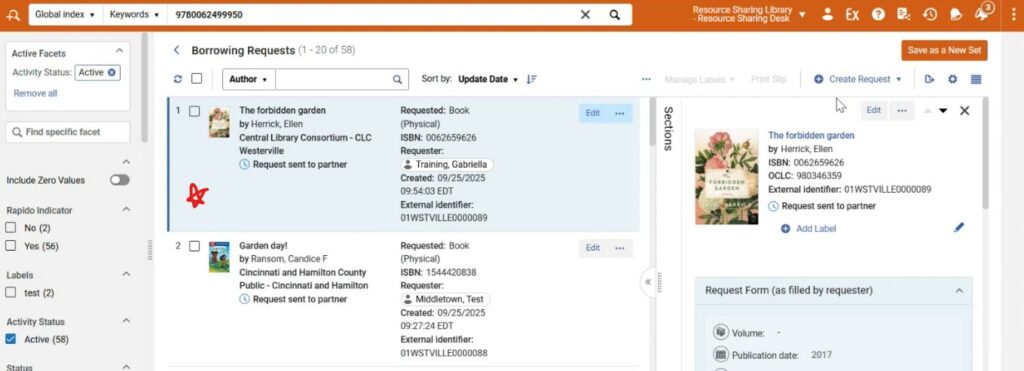
Step 2. Select Borrowing and then All active borrowing requests.
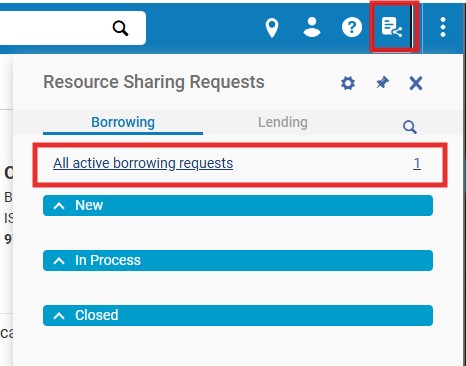
Step 3. All items that your patrons have on hold through SearchOhio/OhioLINK will show up with the latest one on top.