
These instructions are intended for TLC/Sirsi libraries using the Rapido interface for all resource-sharing transactions.
Functions
Requesting
If your library does not require a PIN in your local catalog, then a PIN will not be required to place holds in the SearchOhio catalog. Always try to place the hold first through the SearchOhio catalog. If the patron doesn’t know their card number, look them up in your ILS. In most library policies, you can still access their information and place the hold even if they don’t have their ID. In that case, you place the hold, but don’t share their information.
Place a Hold for a Patron on Rapido
Step 1.
Look up the item in Rapido using the Global Index filter on the search bar. You can search by author, keyword, title, ISBN, etc.
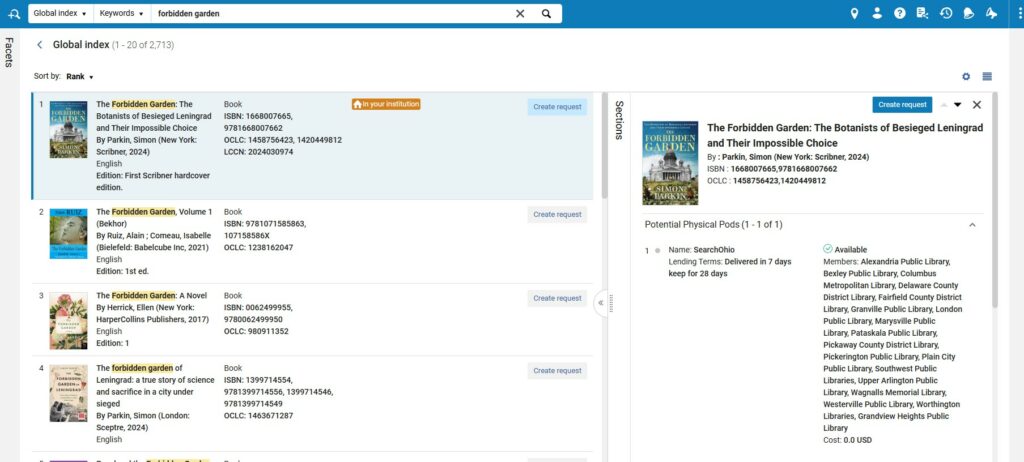
Step 2.
If the item is Available, select Create request to place the hold.
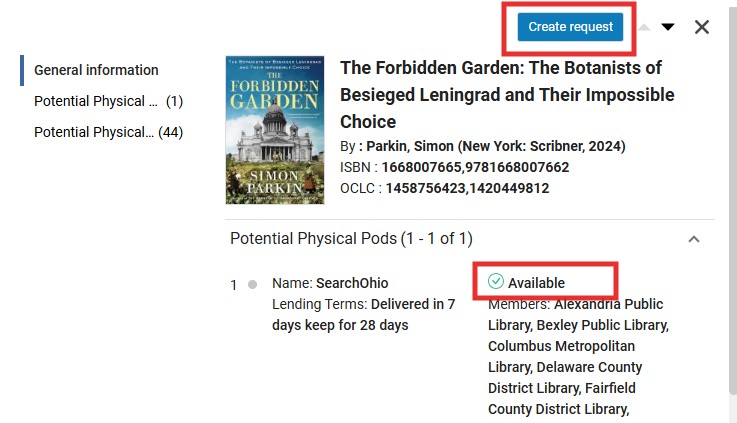
Step 3.
Look up the patron under Requester, then choose the Pickup Location.
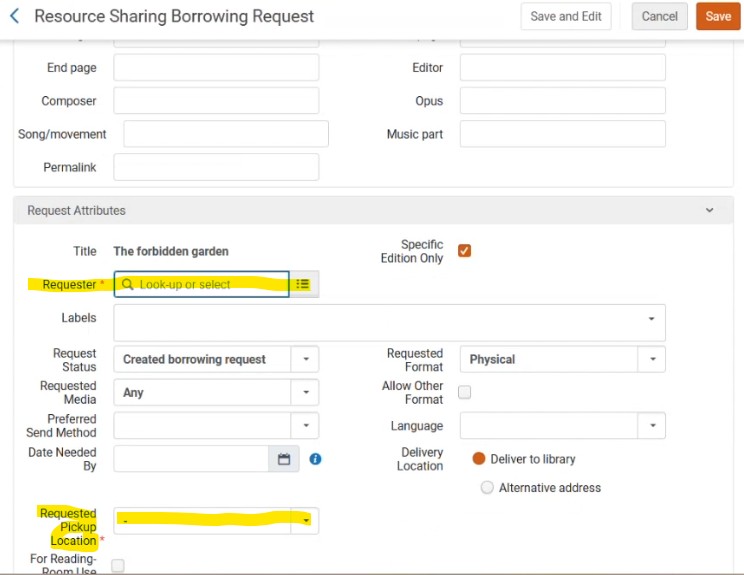
Step 4.
Select Save to complete the request. A pop-up will appear with information. You do not need to note this. It will go away on its own.
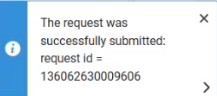
Confirming the Hold
Step 1.
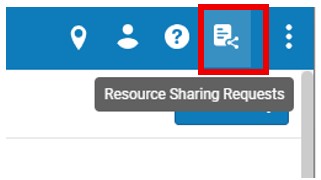
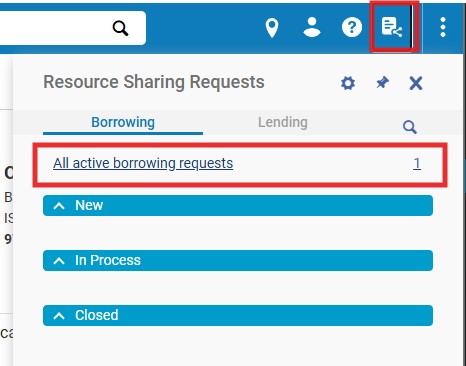
Select the Resource Sharing Requests icon at the top of the screen.
Step 2.
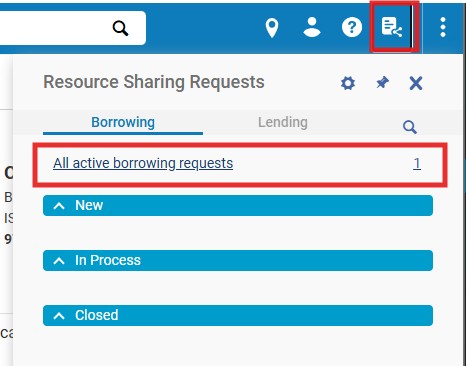
Select Borrowing and then All active borrowing requests.
Step 3.
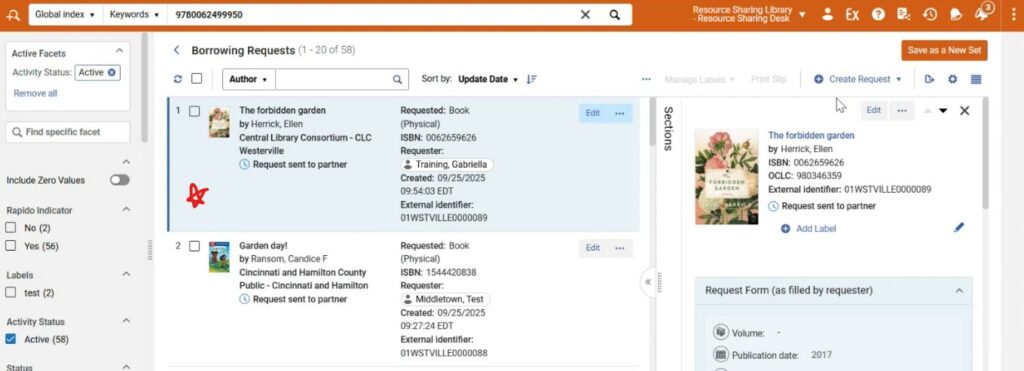
All items that your patrons have on hold through SearchOhio/OhioLINK will show up with the latest one on top.
Process Incoming Items
Materials requested by local patrons arrive via deliveries from Priority. SearchOhio and OhioLINK materials will have a sticker label placed on the front with the owning library’s information, and a paging slip/receipt placed inside the item. Keep the sticker label in place, and hold onto the paging slip until the item is completely processed.
Step 1.
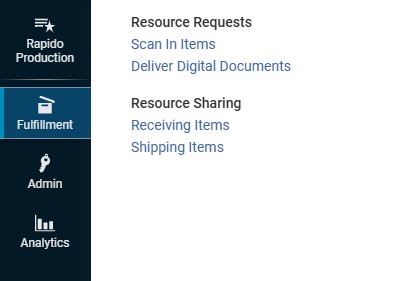
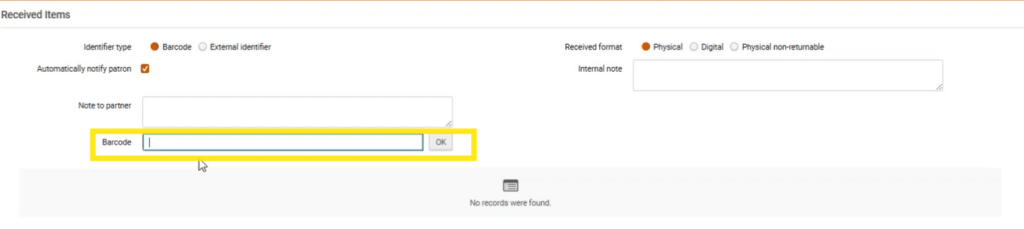
In Rapido, select Fulfillment and then Receiving items under Resource Sharing.
Step 2.
Scan the barcode to receive the item.
Step 5.
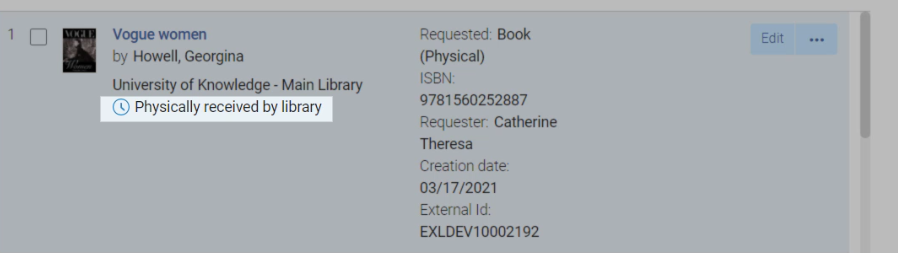
The item status has changed to Physically received by library and can now be processed in the local ILS so that the patron gets notified.
Process Outgoing Items
Step 1. Print paging slips.
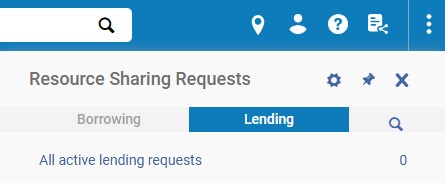
Lending Requests page (Fulfillment > Resource Sharing > Lending Requests).
Step 2.
Select the check boxes on the requests for which you need a slip, then select the Print Slip Report action. Search for the items on the list.

Step 3.
Items must be checked out in the local ILS first, allowing staff to catch any items that are on hold for local patrons. Items that come up with holds must have those holds activated, and the requests canceled in the DCB.

Step 4.
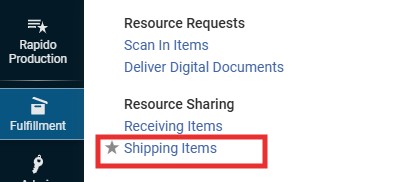
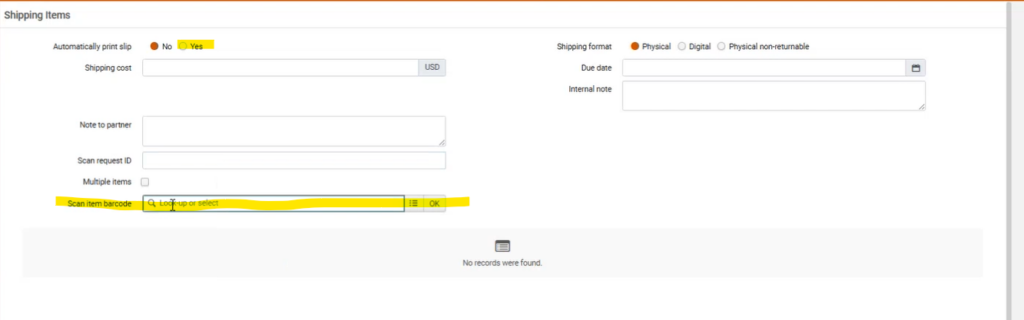
When the item has been gathered and checked out in the local ILS, go back to Rapido. In Rapido, Navigate to Fulfillment and Shipping Items under Resource Sharing.
Step 5.
On the next screen, scan the item barcode and choose OK.
Step 6.
The item’s status has now changed to Shipped Physically.
Step 7.
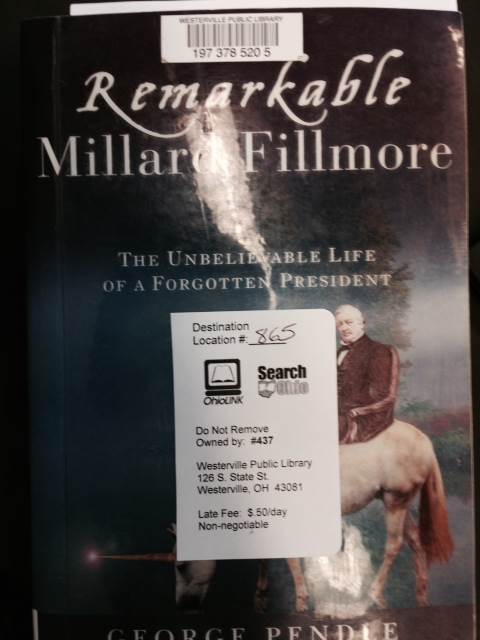
Label and pack the item for shipping. Affix a SO/OL sticker to the face of the item, making sure not to cover the barcode. Write the 3-digit code of the borrowing library on the label.
Process Returning Items (Items your patrons have borrowed)
Returning items must be checked in through both the local ILS and Rapido.
Step 1.
Check the item in on your local ILS.
Step 2.
Open Rapido and go to Resource Sharing Requests > Borrowing. Or scan the barcode in the search bar.
Step 3.
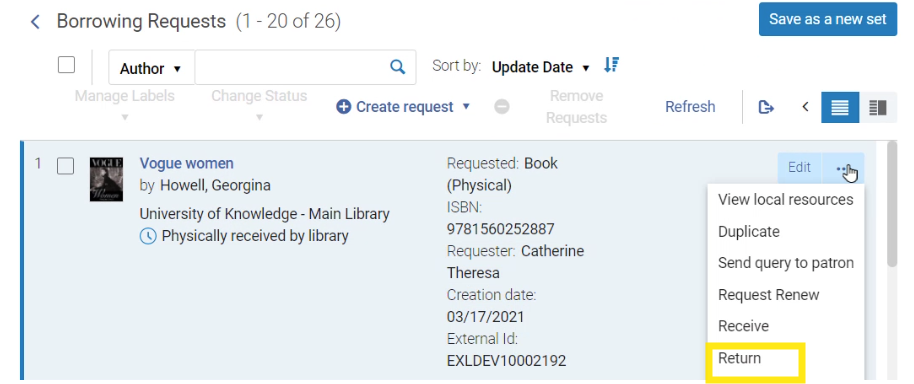
Locate the item, then select the three dots or menu to the right of the title. Select Return.
Step 4.
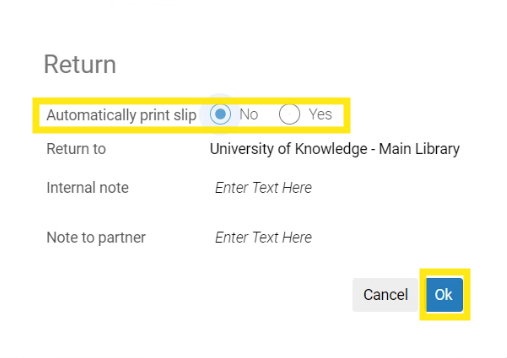
On the pop-up, choose whether or not you want a slip, then select Ok.
Step 5.
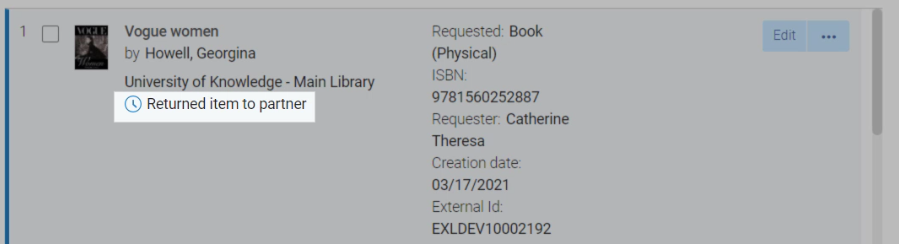
The status of the item changes to Returned item to partner.
Step 6.
Pack the item to return to the owning library.